The superannuation standard choice form is for employees to tell you about their choice of super fund. A new employee can complete this form to help you enter their super details into their contact record in MYOB.
If an employee has self-onboarded, you can view a completed super choice form and print or save it for your records.
To get or view a super choice form
Go to the Payroll menu and choose Employees.
Click the employee's name to open their contact record.
Click the Payroll details tab.
Click the Superannuation tab.
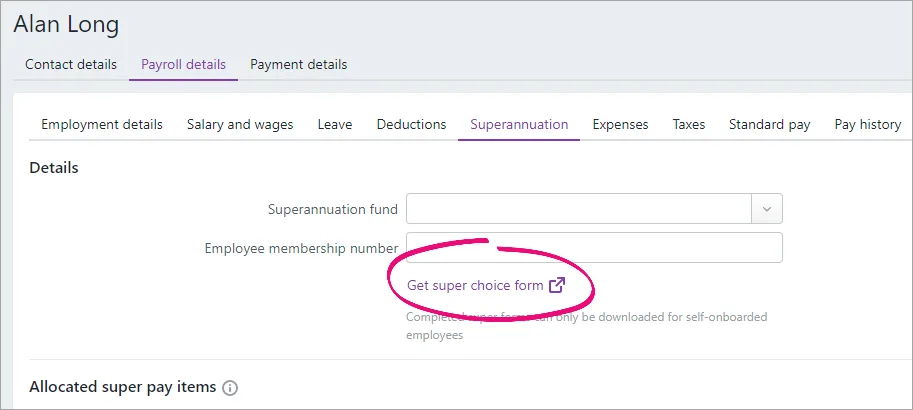
Click Get super choice form to open an ATO web page containing details about about downloading and completing this form.
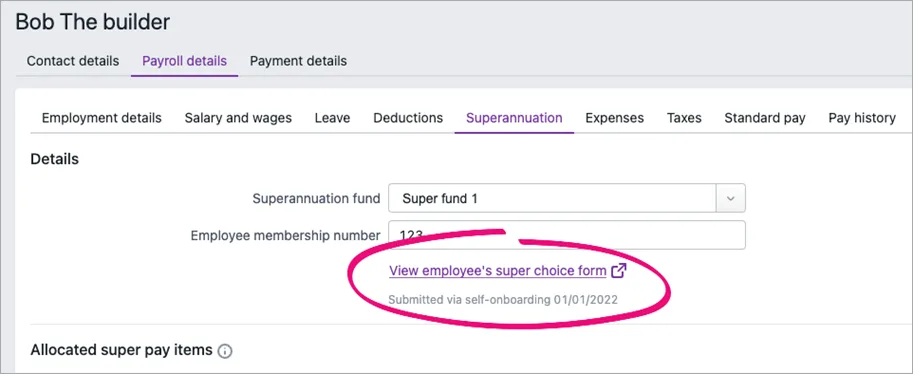
If the employee has self-onboarded, click View employee's super choice form to display their completed super choice form as a PDF in a new browser tab. If you like, you can save or print this form for your records.


AccountRight Plus and Premier only
The superannuation standard choice form is for:
employers to tell employees of the employer’s nominated fund, and
employees to tell an employer of their choice of fund.
The form contains information about its completion, use and retention requirements.
When an employee provides their super fund details, you can enter this information into their employee card in AccountRight.
Printing the form
To print the form from AccountRight you'll need Microsoft Word on your computer. Otherwise you can download the form as a PDF from the ATO website.
In AccountRight you can print:
a blank super choice form, or
a super choice form with some details filled in for you (pre-populated).
To print a blank super choice form
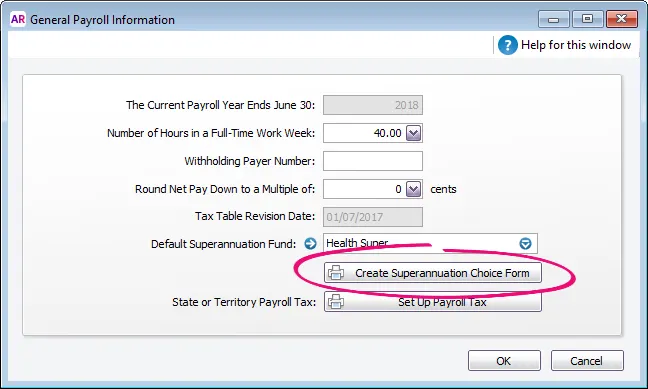
Go to the Setup menu and choose General Payroll Information. The General Payroll Information window appears.
Click Create Superannuation Choice Form. If this button is not clickable, select a Default Superannuation Fund.
The Review Employees Before Exporting window appears.
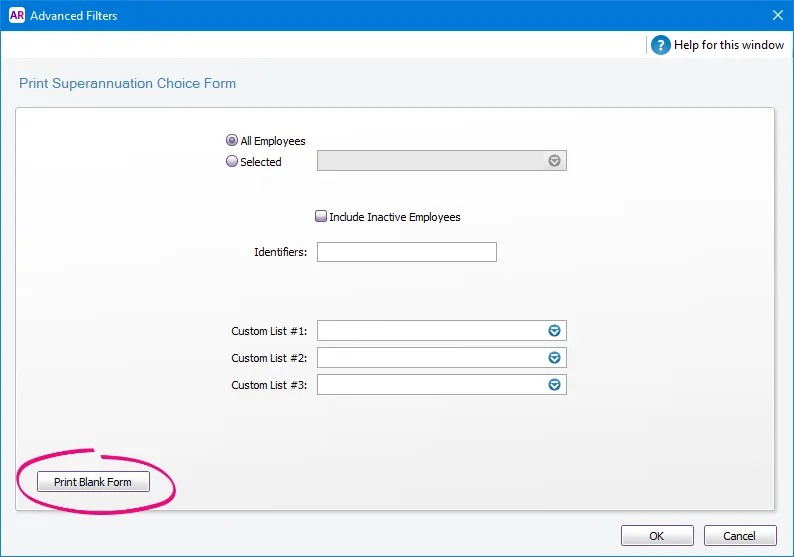
Click Advanced Filters.
Click Print Blank Form.
The form displays in a Microsoft Word document.
(Optional) Complete as much information as you can.
Print the form.


To print a pre-populated super choice form
AccountRight can fill in some of the details on the form with information from your company file. This includes your business name and ABN and the employee's name and tax file number.
Go to the Setup menu and choose General Payroll Information. The General Payroll Information window appears.
Click Create Superannuation Choice Form. If this button is not clickable, select a Default Superannuation Fund.
The Review Employees Before Exporting window appears.
Select the employees for whom you want to print a super choice form.
Click Mail Merge.
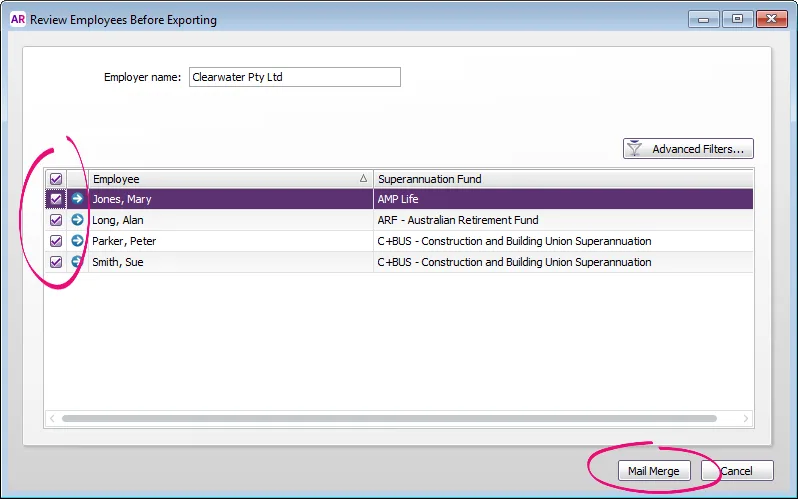
The forms display in a Microsoft Word document.
(Optional) Complete as much information as you can.
Print the forms.

Invalid Merge Field
If you see this warning in Microsoft Word, click Remove Field. The superannuation standard choice form will generate successfully.
