After setting up Single Touch Payroll (STP), there are some business and contact details you can update yourself.
Other details, like your ABN and Software ID, were recorded when you set up Single Touch Payroll. To update these details you'll need to go through the STP setup steps again.
Let's look at the details:
To update your business details (business name, ABN, ABN branch or address)
Go to the Payroll menu and choose Single Touch Payroll reporting.
Click the ATO settings tab.
Enter your updated details.
Click Update business details.
To update your business contact details (name, email or phone)
Go to the Payroll menu and choose Single Touch Payroll reporting.
Click the ATO settings tab.
Enter your updated details.
Click Update contact details.
To update your business details connected to the ATO (Software ID, ABN, Agent ABN or Registered Agent Number)
Go to the Payroll menu and choose Single Touch Payroll reporting.
Click the ATO settings tab.
Click the Edit STP business details link.
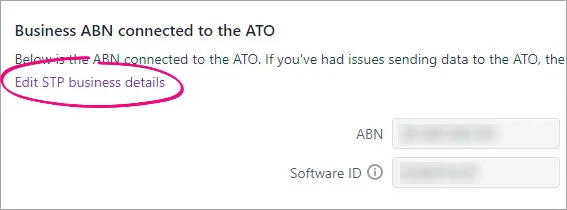
At the confirmation, click Edit STP business details.
Follow the prompts to set up Single Touch Payroll again.

If you've changed your ABN, also change it in your Business settings and Pay Super settings.
FAQs
What if I make a mistake in a pay run?
Mistakes happen and in MYOB they're easy to fix. Depending on what needs fixing, you might be able to adjust the employee's next pay or undo the pay and record it again.
With STP, your employees' year to date (YTD) figures are sent to the ATO after each pay run. So if changing an employee's pay affects their YTD figures, the updated figures will be sent to the ATO the next time you do a pay run.
If a pay has been accepted by the ATO and you need to undo it, you'll need to reverse the pay and report the reversal to the ATO.
For all the details on fixing pays, see Fixing a pay.
If the pay you need to change is in a payroll year that's been finalised with the ATO, see Changing a pay after finalising with Single Touch Payroll.
AccountRight Plus and Premier only
After setting up Single Touch Payroll (STP), there are some details you can update yourself, like your name, business phone number or email address.
Other details, like your ABN and Software ID, were recorded when you set up Single Touch Payroll. To update these details you'll need to set up Single Touch Payroll again.
To update your name, business phone number, or business email address
Go to the Payroll command centre and click Payroll reporting.
Click Payroll Reporting Centre.
If prompted, sign in with your MYOB account details.
Click the ATO settings tab.
Enter your updated details.
Click Update details.
To update your ABN, Software ID, Agent ABN or Registered Agent Number
Go to the Payroll command centre and click Payroll reporting.
Click Payroll Reporting Centre.
If prompted, sign in with your MYOB account details.
Click the ATO settings tab.
Click STP settings.
Follow the prompts to set up Single Touch Payroll again.
FAQs
How do I fix or delete a report that's been sent to the ATO?
With STP, your employees' year to date (YTD) figures are sent to the ATO after each pay run. So if changing an employee's pay affects their YTD figures, the updated figures will be sent to the ATO the next time you do a pay run.
If you want to remove or "undo" a pay that you've sent to the ATO, you'll be able to delete or reverse it based on its status in the Payroll Reporting Centre. This ensures you're not deleting anything which has already been accepted by the ATO. For details, see Changing a recorded pay.
Pay runs will remain listed in the payroll reporting centre even after deleting or reversing a pay in AccountRight.
If the pay you need to change is in a payroll year that's been finalised with the ATO, see Changing a pay after finalising with Single Touch Payroll.