If an employee is entitled to paid public holidays, these days can be processed on their pay like any other paid workday. This means if an employee takes 5 days off work (4 days as annual leave and 1 day for a public holiday), simply process a regular pay with 4 days annual leave.
The FairWork website is a great resource to learn about public holidays and getting paid for public holidays.
If you'd like to show public holidays separately on a pay, you can create a new pay item.
Take a look:
To show public holidays separately on a pay
Go to the Payroll menu and click Pay items.
Click the Wages and salary tab.
Click Create wage pay item.
Enter a Name for the pay item, like Paid Public Holiday (or similar).
If you'd like a different, more personalised, name to show on pay slips for this earning, enter a Name for pay slip, such as "Public holiday - Steven". If you leave this blank, the pay item Name will display instead.
Choose the ATO reporting category. This will typically be the same category you've chosen for other payments like wages. If you're not sure, check with your accounting advisor or the ATO. Learn about assigning ATO reporting categories for Single Touch Payroll.
For the Pay basis, choose Hourly.
For the Pay rate, choose Regular rate multiplied by and leave the next field set to 1.0000.
(Optional) If you want to track public holiday payments through a separate account, select the option Override employees' wage expense account and choose the override account in the field that appears. How do I create accounts?
Select the option Automatically adjust base hourly or base salary details. This ensures when you add a paid public holiday to a pay, the employee's regular hours are reduced accordingly and they won't be overpaid.
Under Allocated employees, choose the employees entitled to paid public holidays.
Under Exemptions, choose any deductions or taxes that shouldn't be calculated on public holiday payments. If you're not sure, check with your accounting advisor or the ATO.
Here's our example.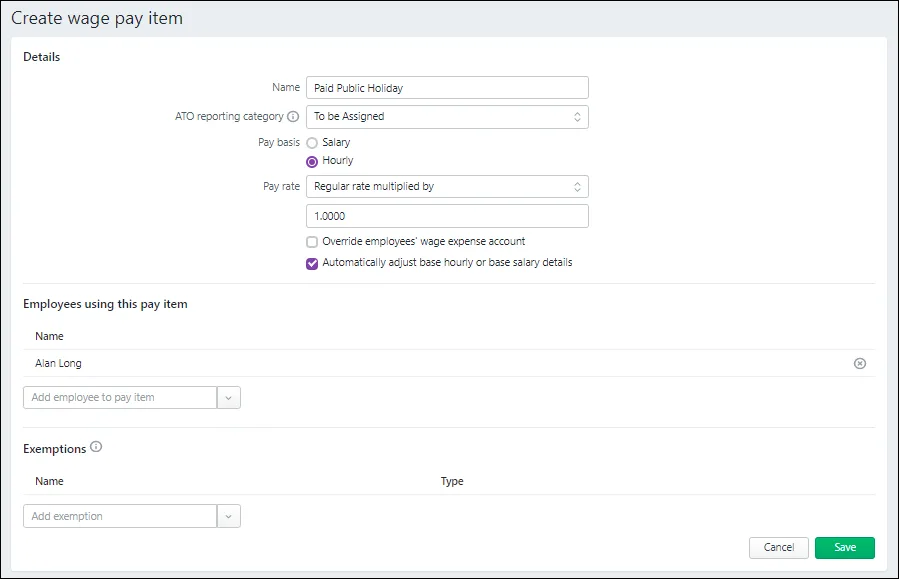
When you're done, click Save.

When you record a pay which includes a public holiday, enter the number of hours against the Paid Public Holiday pay item. The Base Hourly or Base Salary amount will adjust automatically.
Only assign the pay item to your employees when you need to include a paid public holiday on their pay. After paying them, you can unlink the pay item from your employees to prevent it showing when you don't need it to.
Learn more about assigning and unlinking pay items.
If an employee is entitled to paid public holidays, these days can be processed on their pay like any other paid workday. This means if an employee takes 5 days off work (4 days as annual leave and 1 day for a public holiday), simply process a regular pay with 4 days annual leave.
The FairWork website is a great resource to learn about public holidays and getting paid for public holidays.
If you'd like to show public holidays separately on a pay, here's how:
To show public holidays separately on a pay
To show public holidays separately on a pay, you'll need to create a new wage category and assign it to your employees.
Go to the Payroll command centre and click Payroll Categories.
Click the Wages tab.
Click New.
Name the new category 'Public Holidays' (or similar).
For the Type of Wages, select Hourly.
Choose the applicable ATO Reporting Category. Typically this will be the same ATO Reporting Category you've chosen for your Base Hourly or Base Salary wage categories. Learn more about assigning ATO reporting categories for Single Touch Payroll reporting.
Select these options:
Pay Rate as Regular Rate Multiplied by 1.0000
Automatically Adjust Base Hourly or Base Salary Details
Click Employee and select the employees requiring this category to be included on their pay.
Here's our example.

When you record a pay which includes a public holiday, enter the number of hours against the Public Holidays category. The Base Hourly or Base Salary amount will adjust automatically.

Here's how it will appear on the employee's pay slip:
