Paid parental leave is a government scheme for eligible working parents. The government pays money to the employer to pass on to the employee. From 1 July 2025, the government will also pay super guarantee payments directly to your employee’s superannuation fund after the relevant financial year has ended.
For the current rate of paid parental leave and its tax implications, seek advice from the ATO or Services Australia.
The setup described below is one way of tracking paid parental leave. Depending on your parental leave reporting obligations, you may want to track your parental leave differently. Your accounting advisor or the ATO will be able to provide clarification on the appropriate solution for your circumstances.
There are a few categories and pay items you'll need to set up, and we'll take you through it one step at a time.
1. Set up the required categories
You'll need to set up three new categories to track your parental leave:
a liability category
an income category
an expense category
Create a liability category
Go the Accounting menu and click Categories (Chart of accounts).
Click Create category.
Select Detail category.
For the Type, choose Other liability.
Choose the applicable Parent header. This determines where the category will sit with your other liability categories. If unsure, check with your accounting advisor.
Enter an Code and Name which suits your categories list.
Choose the applicable Tax code. If unsure, check with your accounting advisor or the ATO.
Choose the applicable Classification for statements of cash flows. What is this?
When you're done, click Save.
Create an income category
On the Categories (Chart of accounts) page, click Create category.
Select Detail category.
For the Type, choose Other income.
Choose the applicable Parent header. This determines where the category will sit with your other income categories. If unsure, check with your accounting advisor.
Enter an Code and Name which suits your account list.
Choose the applicable Tax code. If unsure, check with your accounting advisor or the ATO.
Click Save.
Create an expense category
On the Categories (Chart of accounts) page, click Create category.
Select Detail category.
For the Type, choose Expense.
Choose the applicable Parent header. This determines where the category will sit with your other expense categories. If unsure, check with your accounting advisor.
Enter an Code and Name which suits your account list.
Choose the applicable Tax code. If unsure, check with your accounting advisor or the ATO.
Click Save.
2. Create a new wage pay item
Go to the Payroll menu and choose Pay items.
On the Wages and salary tab, click Create wage pay item.
For the Name, enter "Paid Parental Leave" or similar.
Choose the applicable ATO reporting category. Typically this will be the same ATO reporting category you've selected for your Base Hourly or Base Salary wage categories. If unsure, check with your accounting advisor or the ATO.
For the Pay basis, select the Salary option.
Select the option Override employees wage expense category and in the Categories field, choose the expense category you created earlier.
To prevent super guarantee from calculating on paid parental leave payments, select the option Do not include in Superannuation Guarantee calculations. Which payments should super be calculated on?
Under Allocated employees, choose the employee(s) taking paid parental leave.
When you're done, click Save.
3. Exempt paid parental leave from calculating superannuation
When you set up the paid parental leave pay item above, there was an option to prevent super from calculating on those payments.
From 1 July 2025, the government will pay super guarantee payments directly to your employee’s superannuation fund after the relevant financial year has ended.
If you're not sure if you need to make additional super contributions on parental leave payments, check the ATO guidelines.
Here's how to check if your paid parental leave payments are set up to be excluded from super calculations:
Go to the Payroll menu and choose Pay items.
Click the Superannuation tab.
Click to open the Superannuation Guarantee pay item.
Under Exemptions, if the Paid Parental Leave wage pay item isn't listed, you can select it here. This will prevent super from calculating on those payments.
Click Save.
Repeat for any additional superannuation pay items you want to exclude from parental leave payments.
4. Exempt paid parental leave from accruing entitlements
If you're not sure if a leave entitlement should accrue whilst on paid parental leave, check with your accounting advisor or the ATO.
If the leave shouldn't accrue, keep reading. Otherwise skip to task 5 below.
Hourly-based employees
For hourly employees the entitlement will not accrue as there are no hours to calculate the percentage. This seems contradictory, but normally hourly employees will accrue leave as a percentage of hours worked. While they are on paid parental leave, they are being paid via a salary wage pay item, rather than an hourly wage pay item. Therefore having no hours on the pay means that no leave will accrue.
Salary-based employees
Salaried employees will need to have the leave entitlement pay item excluded. This is because generally these employees will be set to accrue a flat amount of hours per Pay Period/Month/Year, and unless the entitlement is excluded, the entitlement will continue accruing throughout the period of their paid parental leave.
To exclude a leave entitlement
Complete these steps before making the fist payment to the employee whilst they are on parental leave.
Go to the Payroll menu and choose Employees.
Click to open the employee's record.
Click the Payroll details tab.
Click the Leave tab.
Click the delete ⮾ icon for each leave entitlement to be excluded whilst on parental leave.
Click Save.
When the employee returns to work
When the employee returns to work after their paid parental leave, you'll need to assign these leave entitlements to the employee again so that the entitlements will accrue. See Assigning pay items to employees.
5. Pay the employee during their leave
You can add the amount to be paid each pay period into the employee's standard pay. This means when you complete a pay run, the right amount will be paid to the employee.
Go to the Payroll menu and choose Employees.
Click to open the employee's record.
Click the Payroll details tab.
Click the Standard pay tab.
Take note of the wage pay items and amounts against each (you'll need to re-enter these after the employee returns to work).
For all wage pay items (except the Paid Parental Leave pay item) enter zero.
For the Paid Parental Leave pay item, enter the amount that is to be paid each pay.
Click Save.
6. Receive the payment from the government
When the employer receives a parental leave payment from the government, this needs to be recorded as a receive money transaction into the liability category created above.
Go to the Banking menu and choose Receive money.
In the Bank account field, choose the account the payment is being received into.
If you've set up a contact for the payer, select them in the Contact field.
Enter a Description of transaction.
Select whether the amount is Tax inclusive or Tax exclusive.
On the first line, choose the liability account created earlier in the Category field.
Enter the Amount of the payment received.
(Optional) Enter a Description of this payment.
Check the Tax code and change it if required. If unsure, check with your accounting advisor or the ATO.
Click Record.
7. Re-enter standard pay details when they return to work
Go to the Payroll menu and choose Employees.
Click to open the employee's record.
Click the Payroll details tab.
Click the Standard pay tab.
Enter the employee's standard pay details against each wage pay item (as noted in Task 5 above).
Click the Salary and wages tab.
Click the delete ⮾ icon to remove the Paid Parental Leave pay item.
Click Save.
The employee's standard pay is now reinstated and the paid parental leave pay item will no longer appear on their pay.
8. Record a clearing journal entry
Based on the setup described above, you'll need to record a journal entry to move the parental leave funds from your software's liability account to the income account. This typically occurs at the end of the financial year, and it ensures the funds are accounted for correctly in your business reports.
However, you should check with your accounting advisor or the ATO to determine your business reporting requirements in regard to parental leave payments.
To record the journal entry:
Go to the Accounting menu and choose Create general journal.
Check the Date of the transaction and change it if required.
Select whether the transaction will display in GST reports as a Purchase or Sale.
Enter a Description of transaction.
If this is an end of year adjustment, select the option EOFY adjustment.
Select the Tax Inclusive option.
On the first line of the journal, choose the liability category created earlier, and enter the amount in the Debit column.
On the second line of the journal, credit the same parental leave value to the income category created earlier.
Click Record.
FAQs
How do I set up unpaid parental leave?
To do this you'd need to create an hourly wage pay item for unpaid leave with a fixed rate of $0.00 per hour. For general information about setting up unpaid leave, refer to Leave without pay. For information on parental leave entitlements, refer to the Fair Work website.
Paid Parental Leave is a government scheme for eligible working parents. The government pays money to the employer to pass on to the employee. From 1 July 2025, the government will also pay super guarantee payments directly to your employee’s superannuation fund after the relevant financial year has ended.
For the current rate of paid parental leave and its tax implications, seek advice from the ATO or Services Australia.
The setup described below is one way of tracking paid parental leave. Depending on your parental leave reporting obligations, you may want to track your parental leave differently. Your accounting advisor or the ATO will be able to provide clarification on the appropriate solution for your circumstances.
1. Set up the required accounts
The steps below describe how to create three new accounts to track your parental leave:
a liability account (this is for the parental leave payments when you receive them from the government)
an income account (this is to reflect the government's parental leave payments as income in your business reports - see task 8 for more info)
an expense account (this is to track the parental leave payments you make to your employees)
Create a liability account
Go to the Accounts command centre and click Accounts List .
Click the Liability tab.
Click New. The Account Information window appears.
Enter an Account Number and Account Name which suits your account list.
Here's our example: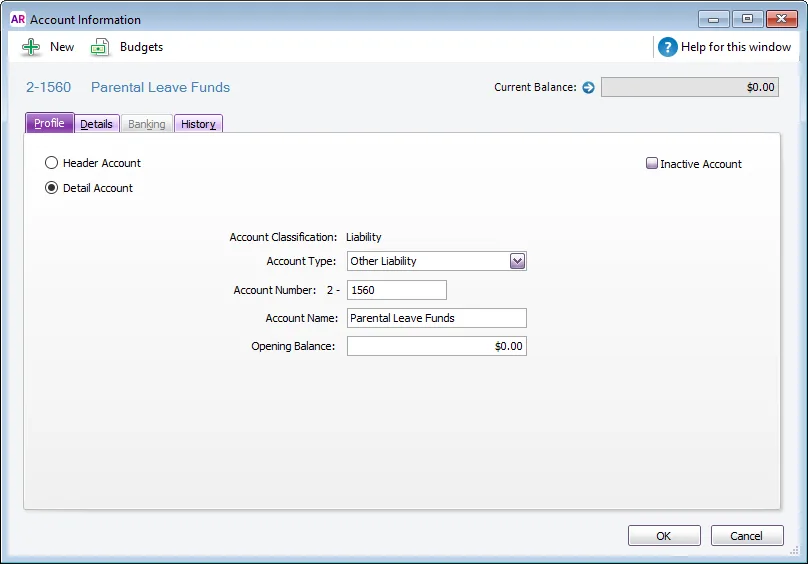
Click OK.

Create an income account
Go to the Accounts command centre and click Accounts List .
Click the Other Income tab.
Click New. The Account Information window appears.
Enter an Account Number and Account Name which suits your account list.
Here's our example: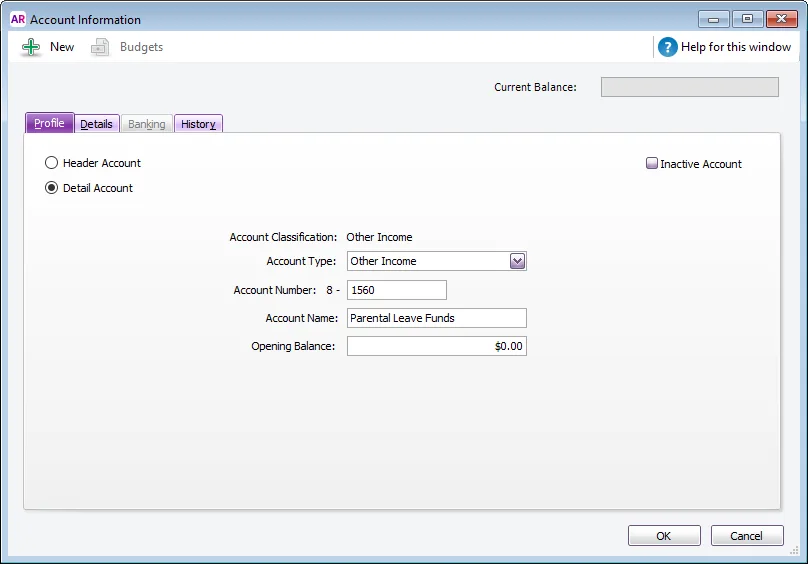
Click OK.

Create an expense account
Go to the Accounts command centre and click Accounts List .
Click the Expense tab.
Click New. The Account Information window appears.
Enter an Account Number and Account Name which suits your account list.
Here's our example: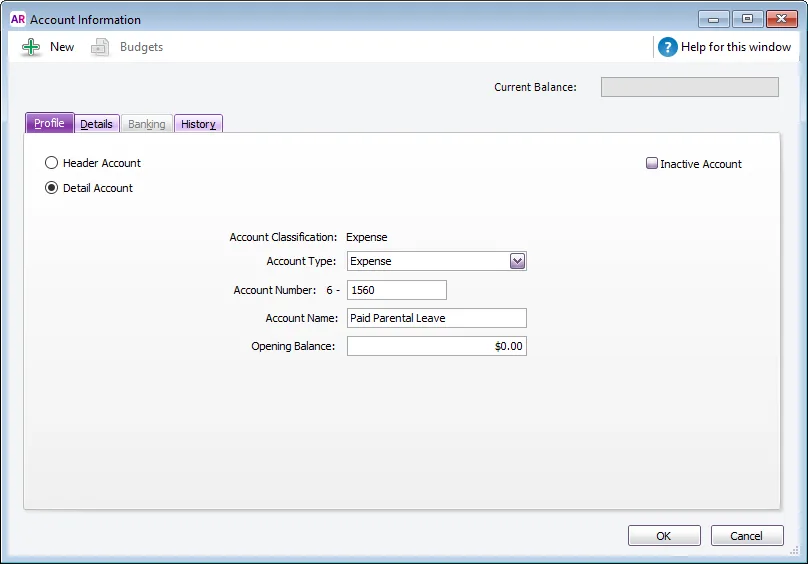
Click OK.

2. Create a new wage category
Go to the Payroll command centre and click Payroll Categories .
On the Wages tab, click New. The Wages Information window appears.
Change the Wages Name field to Paid Parental Leave .
For the Type of Wages , select the Salary option.
If you report payroll information to the ATO through Single Touch Payroll, select the applicable ATO Reporting Category. Typically this will be the same ATO Reporting Category you've selected for your Base Hourly or Base Salary wage categories. Learn more about assigning ATO reporting categories for Single Touch Payroll reporting.
Select the option to Override the Employees' Wage Expense Account .
In the Override Account field specify the expense account you created earlier.
Here's our example: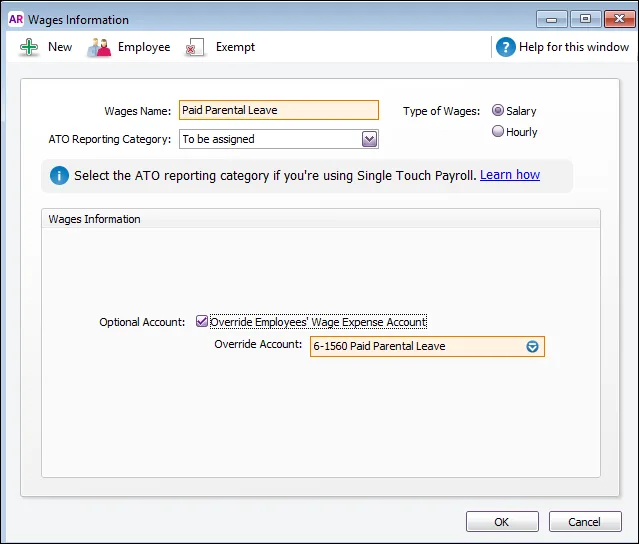
Click Employee and select the employee(s) taking paid parental leave.
Here's our example: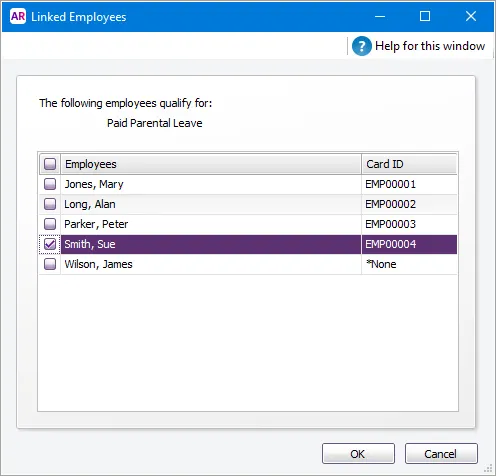
Click OK.


3. Exempt paid parental leave from calculating superannuation
From 1 July 2025, the government will pay super guarantee payments directly to your employee’s superannuation fund after the relevant financial year has ended.
If you're not sure if you need to make additional super contributions on parental leave payments, check the ATO guidelines.
Here's how to check if your paid parental leave payments are set up to be excluded from super calculations:
Go to the Payroll command centre and click Payroll Categories .
Click the Superannuation tab.
Click the zoom arrow next to your superannuation category.
Click Exempt.
If the Paid Parental Leave wage category is selected here, it will be exempted from the superannuation calculation.
Click OK.
4. Exempt paid parental leave from accruing entitlements
Hourly employees
For hourly employees the entitlement will not accrue as there are no hours to calculate the percentage. This seems contradictory, but normally hourly employees will accrue leave as a percentage of hours worked. While they are on Paid Parental Leave, they are being paid via a Salary Wage category, rather than an Hourly Wage category. Therefore having no hours on the paycheque means that no leave will accrue.
Salary Employees
Salary employees will need to have the Entitlement(s) deselected in their card. This is because generally these employees will be set to accrue a flat amount of hours per Pay Period/Month/Year, and unless the entitlement is deselected in their card, the entitlement will continue accruing throughout the period of their Paid Parental Leave.
To deselect the Entitlement(s):
Go to the Card File command centre and click Cards List .
Click the Employee tab.
Click the zoom arrow next to the relevant employee.
Click the Payroll Details tab and choose Entitlements.
Deselect any entitlements that should not be calculated during the Paid Parental Leave period.
When the employee finishes the paid parental leave
When the employee finishes the paid parental leave you'll need to select these entitlements again so that the leave entitlements will accrue.
5. Pay the employee during their leave
You can add the amount to be paid each pay period into the employee's standard pay. This means when you complete a pay run, the right amount will be paid to the employee.
Go to the Card File command centre and click Cards List .
Click the zoom arrow next to the employee taking paid parental leave.
Click the Payroll Details tab.
Click the Standard Pay option from the left-hand side.
Set all wage category amounts (except the Paid Parental Leave category) to zero.
Set the Paid Parental Leave category to the amount that is to be paid each pay period.
Here's our example: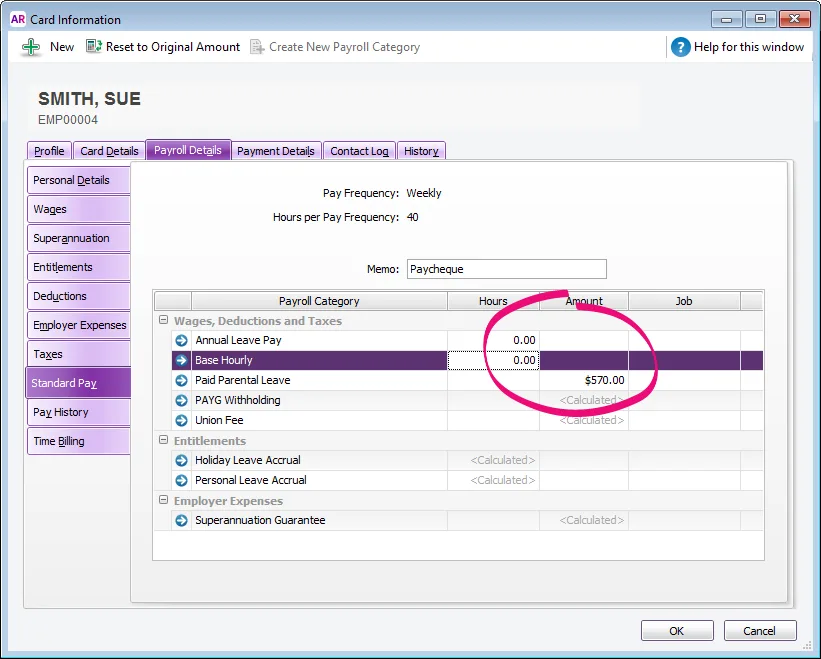
Click OK.
Repeat steps 2-7 for all other employees for whom parental leave is applicable.

6. Receive the payment from the government
When the employer receives a parental leave payment from the government, this needs to be recorded as a Receive Money transaction into the liability account created above.
Go to the Banking command centre and click Receive Money . The Receive Money window is displayed.
Specify the Amount Received.
On the first line, specify the liability account created earlier in the Acct No. field.
Here's our example: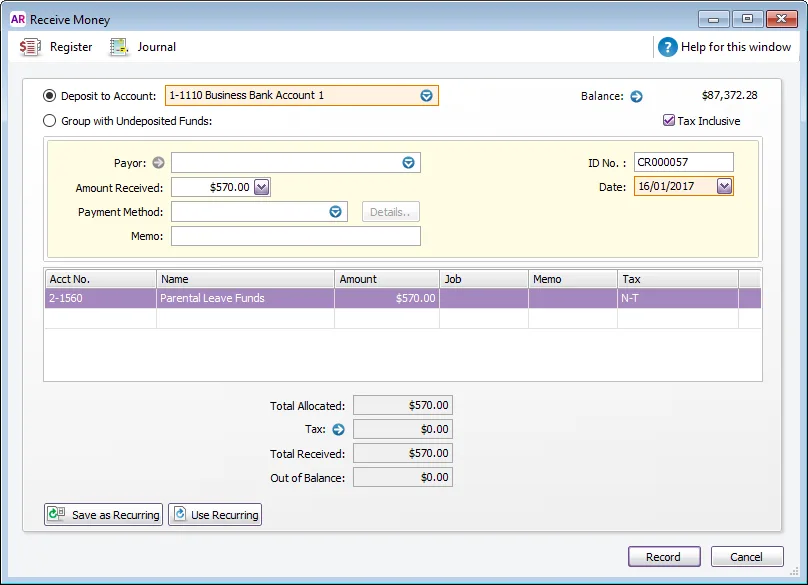
Click Record.

7. Reset the employee's standard pay when they return to work
Go to the Card File command centre and click Cards List .
Click the zoom arrow next to the employee.
Click the Payroll Details tab.
Click the Standard Pay option from the left-hand side.
Click Reset to Original Amounts.
Here's our example: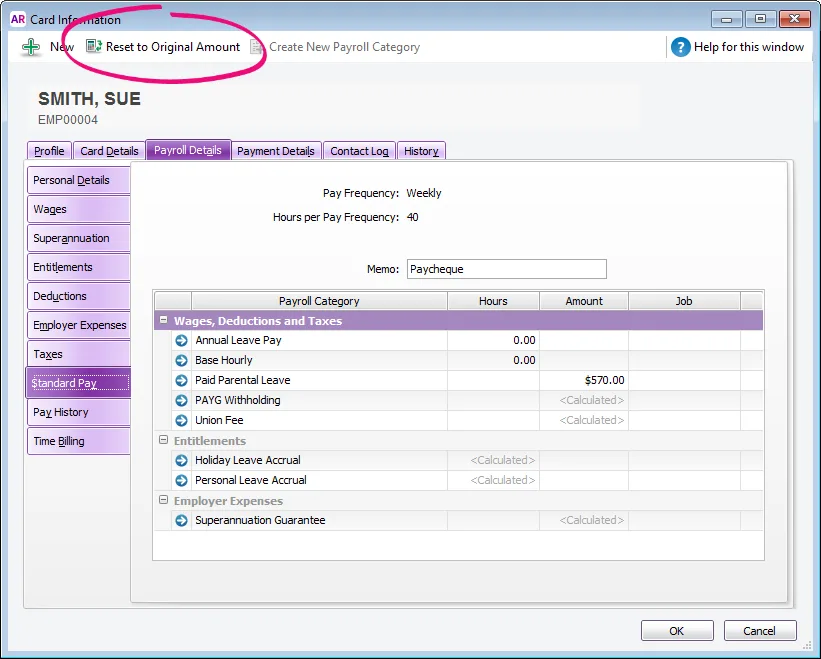
The Paid Parental Leave payment will be removed from the employee's standard pay, and their normal Base Hourly or Base Salary will be reinstated.
Click OK.

8. Record a clearing journal entry
Based on the setup described above, you'll need to record a journal entry to move the parental leave funds from your software's liability account to the income account. This typically occurs at the end of the financial year, and it ensures the funds are accounted for correctly in your business reports.
However, you should check with your accounting advisor or the ATO to determine your business reporting requirements in regard to parental leave payments.
To record the journal entry
Go to the Accounts command centre and click Record Journal Entry . The Record Journal Entry window appears.
Select the Tax Inclusive option.
On the first line of the journal, debit the parental leave value from the liability account created earlier.
On the second line of the journal, credit the same parental leave value to the income account created earlier.
Here's our example: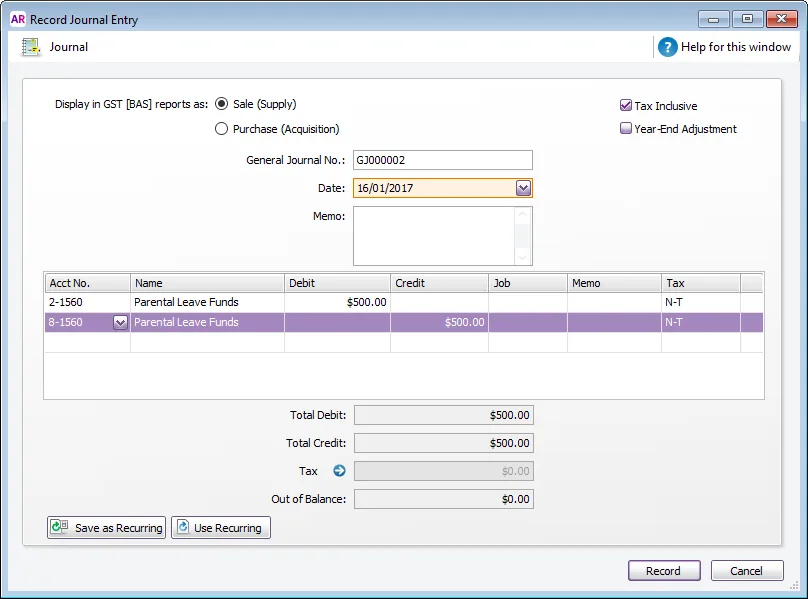
Click Record.

FAQs
How do I set up unpaid parental leave?
To set up unpaid parental leave, you would need to create an hourly wage category for unpaid leave with a fixed rate of $0.00 per hour. For general information about setting up unpaid leave, refer to Leave without pay. For information on parental leave entitlements, refer to the Fair Work website.