We've identified an issue that could affect employees who completed self-onboarding between 2 January and 11 February 2026. An error that occurred during a recent system update may have led to some employees being assigned the wrong tax table. As a result, the amount of PAYG withholding tax being calculated on their pays could be incorrect.
While the cause of the error has been fixed, there are a few steps you may need to take.
What you need to do
First, identify which tax table each self-onboarded employee should have assigned in MYOB – and update it if it's incorrect.
If the employee had the wrong tax table assigned and they've been paid in a pay run during this time, you might need to adjust their year-to-date PAYG withholding tax.
1. Work out your employees' tax tables
Complete these steps in MYOB Business (or the browser version of AccountRight) for each employee who has self-onboarded between 2 Jan and 11 Feb 2026.
Download the employee's submitted self-onboarding details:
Open your file at app.myob.com
Go to the Payroll menu > Employees.
Click the employee's name to open their record.
On the Contact details tab, click View employee details to display a PDF of their submitted details.
Print or save this PDF so you can refer to it in the next step.
Referring to the PDF, use the following table to work out which tax table the employee should have assigned in MYOB.
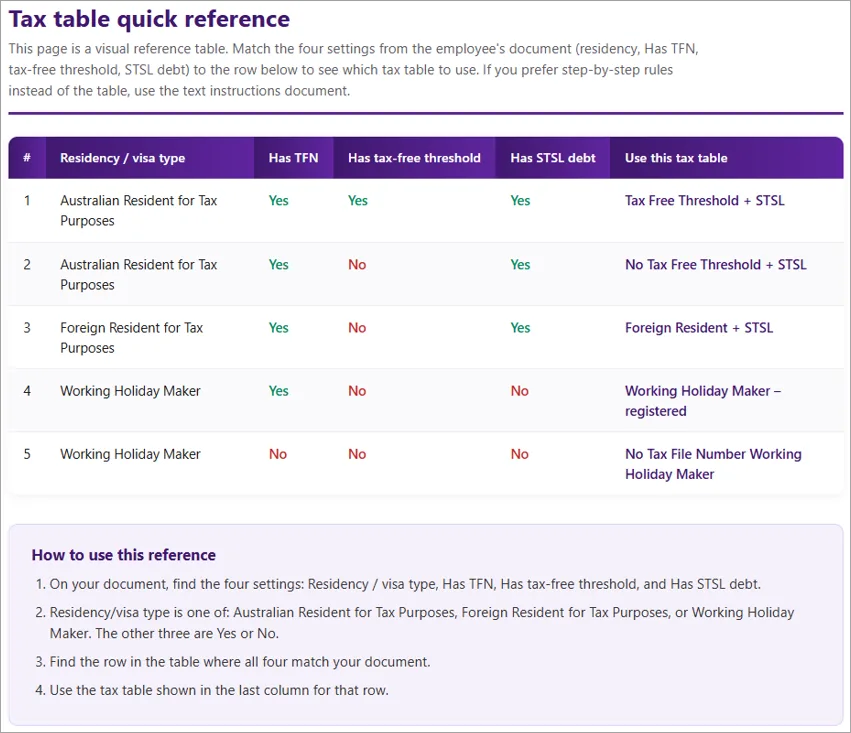
Check the employee's assigned tax table and update it if required (Payroll details tab > Taxes tab > Tax table).
Click Save.

2. Adjust the year-to-date PAYG for impacted employees
If you've paid an employee who had an incorrect tax table assigned, it's likely the wrong amount of PAYG Withholding tax has been calculated on their pays. Once you've assigned them the correct tax table, you'll need to adjust their PAYG Withholding amount in their next pay.
The simplest way to work out the PAYG adjustment is to compare each of their previous pays with a new pay.
Complete these steps for each impacted employee whose tax table you have updated as part of this process.
Open the employee's previous pay (Payroll menu > Pay runs > click the Date of payment for the pay run > click the employee's name).
Take note of the PAYG Withholding amount.
Start a new pay run (Create > Pay run). You won't be recording this pay - it's simply to check the new calculated PAYG Withholding amount.
Select the employee's Pay cycle and enter the same pay dates as the previous pay.
Click Next and click to expand the employee's pay.
Ensure all values match the employee's previous pay, e.g. hours, salary, allowances, etc.
Compare the PAYG Withholding amount you noted from the employee's previous pay with the amount you're seeing in the new pay. The difference between these two amounts is the PAYG adjustment amount for that pay.
Cancel the pay run without saving.
Repeat this for each of the employee's previous pays to determine the total PAYG adjustment amount.
When you record the next pay for these impacted employees, adjust the PAYG Withholding value by the amount calculated above.