Action centre shows your MYOB Business tasks, reminders and shortcuts in one place.

See what needs attention, what’s coming up and what MYOB has already handled.
The cards and sections you see depend on your products, business activity, country, and user access role and permissions.
How it’s organised
Action centre is organised into these sections:
Important shows BAS lodgment reminders (when you’re in a lodgment month) or anything else due that week. This section is expanded by default.
To do shows tasks needing action, including overdue invoices and bills, quotes that haven’t been converted to invoices, reconciliation reminders and tasks created by users with access to your MYOB Business file.
More for you shows other MYOB products and services you can opt into, like the MYOB Assist app, AI BAS or BizCover.
Upcoming shows key tasks and tasks with due dates in an interactive calendar.
Important cards appear first. When a section contains more items than can be shown at once, click Show more to see the rest.
Work through your cards
Each card shows a task, reminder or update. Hover over a card to see a suggested action and click it to go straight to the relevant area of MYOB Business.

You might see cards for:
AI BAS tasks that need your review
AI BAS reminders and deadlines
overdue invoices and bills
unallocated or unmatched bank transactions
uploaded documents that need attention
quotes that you haven’t converted to invoices
MYOB Assist
Business insights and other product updates
Task cards created for your business
Cards appear when they’re relevant to your business or need action. Your user role and permissions also affect which cards and actions you can see.
Review your AI BAS tasks
If you use AI BAS, you can review your BAS throughout the quarter, before the BAS due date. In the Action centre, you’ll see BAS-related cards:

Depending on where in the BAS period you are and what you need to do, these cards can show:
the BAS period
the BAS due date
the time remaining before the due date
how many items still need your attention
what AI BAS has reviewed
the next step in your BAS workflow.
To continue your BAS review, click Review in AI BAS on an outstanding task card. To continue from a submission reminder, click Complete AI BAS. Both actions take you to the AI BAS home screen.
When there are no outstanding tasks for the period, the card changes to show that your BAS work is up to date.
Days remaining indicators
AI BAS cards show the days remaining until BAS lodgment date:
Blue means more than 10 days remain.
Amber means 10 days or fewer remain, but more than one day remains.
Create and manage tasks
You can create your own tasks or reminders that MYOB does not automatically show.
Click Add task.
Enter the details of the task, add a title and an optional due date.
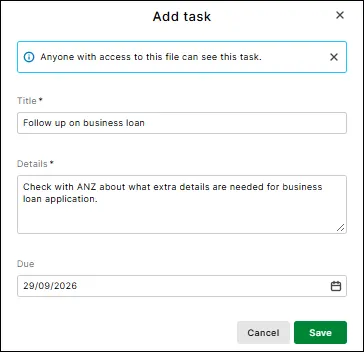
Click Save.

People with access to the business file can see your tasks. You can edit the details or due date later, or click Mark as done when the task is complete.
When you mark a task as done, it’s removed from your active To do list.
Use the calendar
Use the calendar to see tasks due that month.

Any tasks that are due are highlighted in the upcoming section at the bottom of the calendar. Cards with a due date can appear here and in the calendar view, including:
BAS deadlines
Tasks with a due date
Upcoming items are shown separately from tasks.
When you have no tasks to complete
If there are no tasks for you, Action centre shows a message telling you that there is nothing to review or complete:

Choose what needs to appear
You can snooze information (except Important) so it doesn’t show for a selected period:

Click Undo if you want the information to reappear before the selected period:

Choose your starting page
Action centre and the classic Dashboard are both available from MYOB Business.
You can choose which one opens when you sign in and save it as your preferred home page. This preference applies to you, rather than to everyone who accesses the business file.

The classic Dashboard continues to provide access to interactive graphs, financial summaries and other business performance information. Action centre focuses on tasks, reminders and actions.
To switch pages, click Action centre or Dashboard on the side navigation menu.
Why can’t I see a card?
You may not see a card because:
there is currently nothing to action
your business does not use the relevant product or feature
your role or permissions do not allow access to the information
features are still being rolled out, and may not yet be available for your business.
If you work with multiple business files, Action centre shows the cards for the file you currently have open. It does not combine tasks from multiple files into one view.