You can invite your accountant or bookkeeper to access your MYOB Business files. This means they can work online on your business data to do the bookkeeping or get you ready for tax time. That's right—no more office visits or sending them your data.
To do this, you invite them to MYOB Business as an Advisor. An Advisor can access all the MYOB Business files under your serial number (if you have multiple files). You can continue entering invoices, payments, and so on as normal as they work on your books. Advisors are also able to set up bank feeds for your file.
Whether you can invite an Advisor or other users to MYOB Business depends on your user type. If you have the Owner or Online Admin user type, you can invite an Advisor.

The Advisor can also invite members of their practice staff as well.
Find out more about user types and managing users
To invite an Advisor
In your MYOB business, click the settings menu (⚙️) and choose Users and permissions.
Click Create advisor.
Enter the advisor's Name and Email. This must be a unique email address. You can’t use an email address that’s been used for another user.
The Advisor will have the role of Administrator and the User type of Advisor which gives them access to all businesses with this serial number.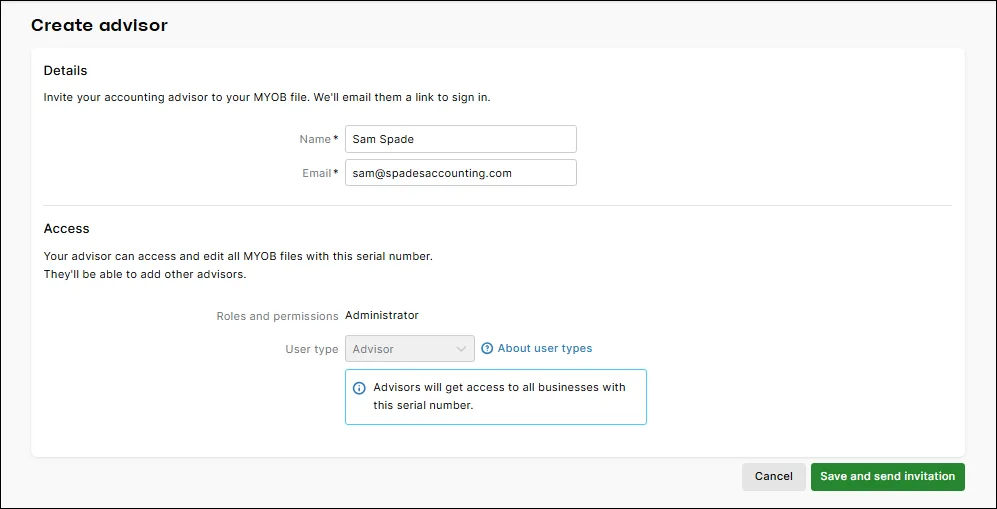
Click Save and send invitation. The invitation is sent to your Advisor. A message appears next to the Advisor's email address that the invitation is pending.
"There is already a user with this email"
Each user needs a unique email address. Before adding this user, check your existing users. Select all status filters to see the full list. When you find the user, check their status to manage their access.

When the Advisor accepts their invitation, they'll be prompted to log in with their MYOB account details or create an account.
Inviting practice staff
If people from the Advisor's practice need access to the file, we recommend that you don’t invite them from MYOB Business. Someone in the practice with Practice Administrator or Manage File Access permissions can do that in their practice software.
For security reasons, an Advisor's staff members can only access the Advisor's file if they have an email address with the same domain as the invited Advisor. For example, if the Advisor's email address is joe@mypractice.com, only employees in the Advisor's file with a "mypractice.com" email address can access the file.
What if the Advisor hasn't accepted the invitation?
If after a few days your Advisor hasn't accepted the invitation, this could be because the invitation has been sent to the wrong address. Check their email address and resend the invitation.
To resend an invitation click the ellipsis ... in the Status column next to the user and choose Resend invitation:

An invitation expires after 10 days if the user hasn't accepted it. But you can still resend an invitation after it expires – the user will get a new invitation email with a fresh accept invitation link (the old link will no longer work).
More about resending invitations
Need to change a user's details or remove them? See Edit and delete users.
FAQs
Can I change a File user or Online Admin to an Advisor?
Owners, Online Admins and Advisors can change the user types of other users. For example, they can change a File User to an Online Admin or Advisor, and they can change an Online Admin to an Advisor or File User.
Only an Owner can transfer the Owner user type to someone else.
Does an invitation expire?
Invitations expire after 10 days, after which it'll have a status of Expired on the Users page. You can remove (cancel) or resend an expired invitation by clicking the ellipsis (...) and choosing an option.
If you resend an invitation, the user will get a new invitation email with a fresh accept invitation link (the old link will no longer work).
This topic is for files that are online using the latest AccountRight version. If your company file isn't online, see Add a user to an offline file.
You can invite your accountant or bookkeeper to access your AccountRight company files. This means they can work online on your business data to do the bookkeeping or get you ready for tax time. That's right—no more office visits or sending them your data.
To do this, you invite them to AccountRight as an Advisor. An Advisor can access all the company files under your serial number (if you have multiple files). You can continue entering invoices, payments, and so on as normal as they work on your books. Advisors are also able to set up bank feeds for your file.
It's important to invite them as an Advisor or Online Admin to allow all necessary accountant or bookkeeping employees to work on the file.
Who can invite users to files?
Whether you can invite an Advisor, or other users to AccountRight, depends on your user type. If you have the Owner or Online Admin user type, you can invite an Advisor.
The Advisor can also invite members of their practice staff as well.
Find out more about user types and managing users
To add an Advisor
Advisors can only be added to online company files. Also, you must be the business owner (typically the person who set up the MYOB subscription) and have the Administrator role.
Open the online company file.
Go to the Setup menu and choose User Access. The User Access window appears.
Click New Advisor. This button will only appear if you're in an online company file.
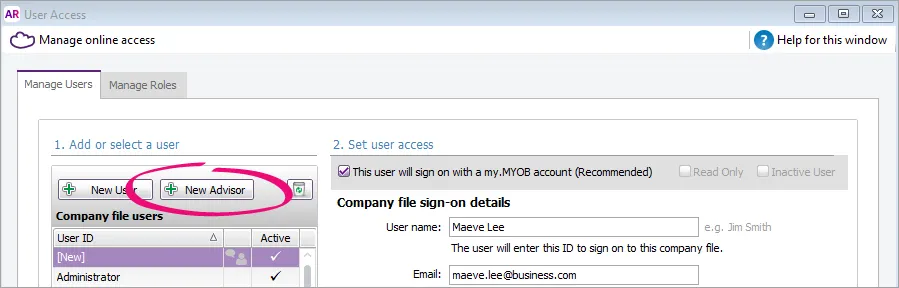
Select the Create an online MYOB login for this user option. This option allows advisors to open the file by just entering their MYOB sign-in details. They won't need to enter the User ID or company file password to open the file.
Set up company file sign-on detailsType the advisor’s name in the User name field.
Enter the advisor's email address in the Email field.
This must be a unique email address. You can’t use an email address that’s been used for another user.
This must be the email address that they use to log into My Account. Note that the email address must have 35 characters or less.
If you want the Advisor to appear in their practice’s Partner Dashboard and have access to all online company files with this serial number, select Invite user to be an online administrator. Leave this option unticked to invite them as a file user for this company file only (the file won’t appear under Manage File Access in their Partner Dashboard).. What is online administrator access?
Select user rolesIn the Roles list, select the roles you want to assign to this advisor. By default, the Accountant/Bookkeeper role is selected.
Click Save and Invite User. An email will be sent to the Advisor's email address inviting them to access your online company file.

Inviting practice staff
If people from the Advisor's practice need access to the file, we recommend that you don’t invite them from AccountRight Someone in the practice with Practice Administrator or Manage File Access permissions can do that in their practice software.
For security reasons, an Advisor's staff members can only access the Advisor's file if they have an email address with the same domain as the invited Advisor. For example, if the Advisor's email address is joe@mypractice.com, only employees in the Advisor's file with a "mypractice.com" email address can access the file.
What if the Advisor hasn't accepted the invitation?
If after a few days your Advisor hasn't accepted the invitation, this could be because the invitation has been sent to the wrong address. Check their email address and resend the invitation.
To resend an invitation, log into the web browser version of AccountRight and go to the Users page (click the settings menu (⚙️) and choose Users and permissions). Click the ellipsis ... in the Status column next to the user and choose Resend invitation:
An invitation expires after 10 days if the user hasn't accepted it. But you can still resend an invitation after it expires – the user will get a new invitation email with a fresh accept invitation link (the old link will no longer work).
More about resending invitations
Need to change a user's details or remove them? See Edit and delete users.
FAQs
Can I disable the Create an online MYOB login for this user option?
Yes.
Go to the Setup menu and choose User Access.
Select the user then deselect the option Can I disable the Create an online MYOB login for this user.
Click OK.
By disabling this option, the user will now need to log in to AccountRight and enter their User ID and password to open the online company file.
Why can't I click User Access in the Setup menu?
You must be the company file administrator, or a user assigned the Administrator role, to use the User Access option in the Setup menu AccountRight desktop. If you still can't see the User Acess option, contact us and we'll help you out.
Does an invitation expire?
Invitations expire after 10 days, after which it'll have a status of Expired on the Users page. You can remove (cancel) or resend an expired invitation by clicking the ellipsis (...) and choosing an option.
If you resend an invitation, the user will get a new invitation email with a fresh accept invitation link (the old link will no longer work).