When you invite a MYOB Business user to be an online administrator, they can work with any business file listed under the owner’s software serial number. You would only give online administrator access to a person you trust to manage user access to your company file data, such as your office manager or your bookkeeper. An online administrator can also:
Invite an online administrator
When you create a user, choose the Online admin option:

Who can invite an online administrator?
Whether you can invite an online administrator depends on your own user type. This controls what MYOB businesses a user can access and who they can invite to work on them. Only someone with the Owner, Online Admin or Advisor user type can invite an Online Admin.
The ability of Online Admins and Advisors to invite other Online Admins is still being rolled out.
Restricting who can invite other users helps keep your business data safe. Below is a summary of who can invite who:

You can see the User type of your users listed on the Users page when you work with your AccountRight company file in a web browser:

Changing an online administrator
As people within your business change roles, the type of access they have to AccountRight and the tasks you need them to perform in your company files might also need to change.
For example, as a staff member takes on more administrative responsibility, you might want to upgrade them to an online administrator.
Only an Owner can change an existing user into an Online Admin, or change an Online Admin to a File User.
Need to change the Owner user for your company file? The existing Owner user can transfer their access.
For information on what different user types can do, see Manage users.
Make a file user an online administrator
Log in to the MYOB Business, using your Owner sign-in details.
If prompted, sign in using your MYOB account details (email address and password).
Click the settings menu (⚙️) and choose Users and permissions to display a list of all users. If you need to, filter the list by keyword search or Status.
Click the user's name.
In the Access section, choose Online admin as the User Type:
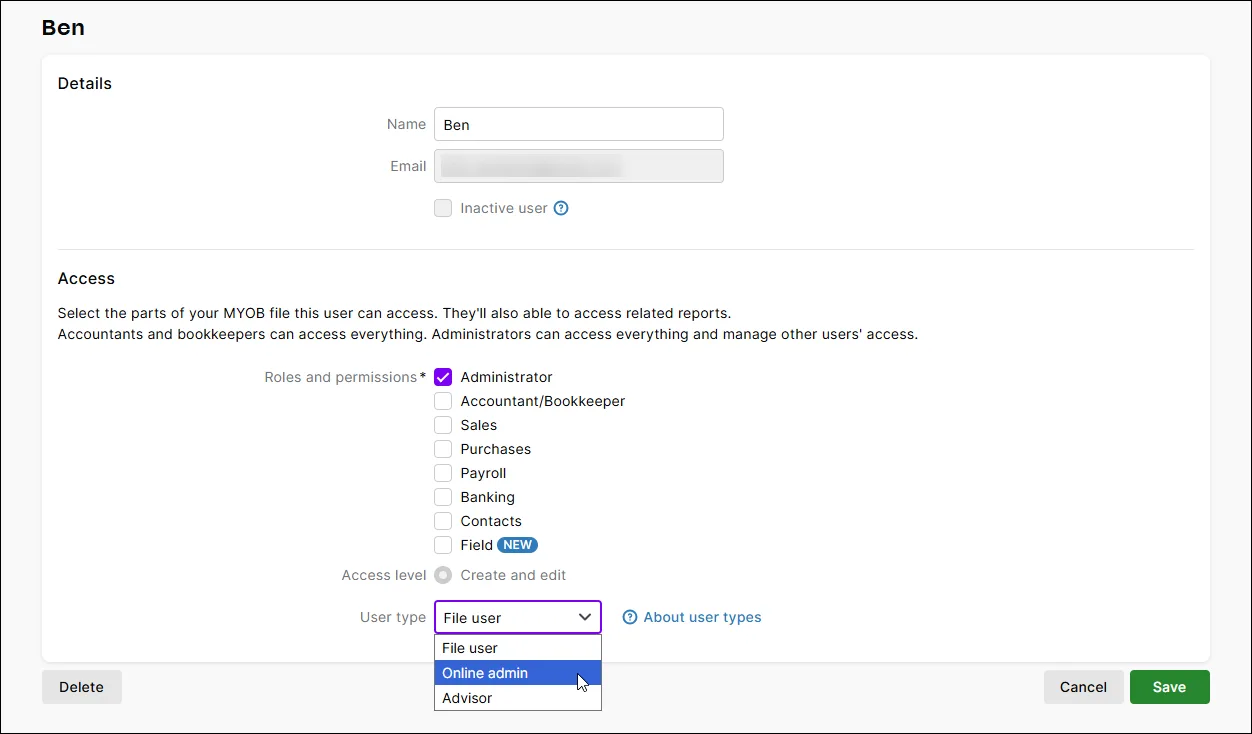
Click Save. The Users page reappears with a confirmation message at the top. If you need to change their company file permissions, see Edit and delete users.

Make an online administrator a file user
Log in to MYOB Business, using your Owner sign-in details.
If prompted, sign in using your MYOB account details (email address and password).
Click the settings menu (⚙️) and choose Users and permissions to display a list of all users. If you need to, filter the list by keyword search or Status.
Click the user's name.
In the Access section, choose File user as the User Type:
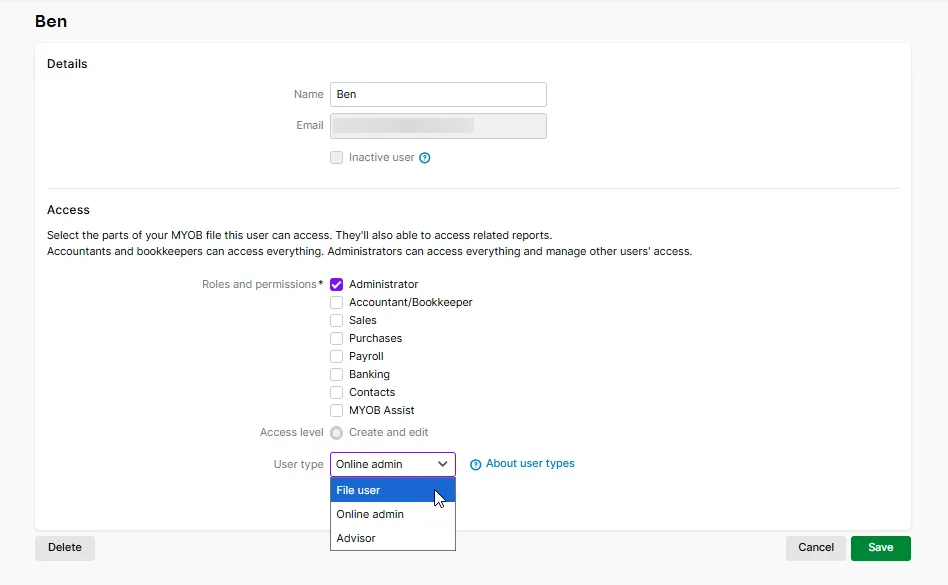
Click Save. The Users page reappears with a confirmation message at the top. If you need to change their company file permissions, see Edit and delete users.

Resending or cancelling an invitation
If you invite a person to be an online file user or administrator by mistake, you can cancel the invitation before it is accepted. It's also a similar process to resend an invitation.
You can also resend an invitation to a user with the status Cancelled, Expired, or Access removed.
More about cancelling or resending an invitation
Need to change what pages, features, and data a user can access in your MYOB business?
Online company files only
When you invite an AccountRight user to be an online administrator, they can work with any company file listed under the owner’s software serial number. You would only give online administrator access to a person you trust to manage user access to your company file data, such as your office manager or your bookkeeper.
An online administrator can also:
Invite an online administrator
Select the option in the User Access window:

Then, complete the rest of the steps to invite them into your company file.
Who can invite an online administrator?
Whether you can invite an online administrator depends on your own user type. This controls what company files a user can access and who can invite others to work on them. Only someone with the Owner, Online Admin or Advisor user type can invite an Online Admin.
The ability of Online Admins and Advisors to invite other Online Admins is still being rolled out.
Restricting who can invite other users helps keep your business data safe. Below is a summary of who can invite who:
You can see the User type of your users listed on the Users page when you work with your AccountRight company file in a web browser:
Changing an online administrator
As people within your business change roles, the type of access they have to AccountRight and the tasks you need them to perform in your company files might also need to change.
For example, as a staff member takes on more administrative responsibility, you might want to upgrade them to an online administrator.
Only an Owner can change an existing user into an Online Admin, or change an Online Admin to a File User.
Need to change the Owner user for your company file? The existing Owner user can transfer their access.
For information on what different user types can do, see Manage users.
Make a file user an online administrator
Log in to the web browser version of AccountRight, using your Owner sign-in details.
If prompted, sign in using your MYOB account details (email address and password). Your company file opens in the web browser version of AccountRight on the Users page.
Click the settings menu (⚙️) and choose Users and permissions to display a list of all users. If you need to, filter the list by keyword search or Status.
Click the user's name.
In the Access section, choose Online admin as the User Type:
Click Save. The Users page reappears with a confirmation message at the top. If you need to change their company file permissions, see Change a user's company file access.
Make an online administrator a file user
Log in to the web browser version of AccountRight, using your Owner sign-in details.
If prompted, sign in using your MYOB account details (email address and password). Your company file opens in the web browser version of AccountRight on the Users page.
Click the settings menu (⚙️) and choose Users and permissions to display a list of all users. If you need to, filter the list by keyword search or Status.
Click the user's name.
In the Access section, choose File user as the User Type:
Click Save. The Users page reappears with a confirmation message at the top. If you need to change their company file permissions, see Change a user's company file access.
Resending or cancelling an invitation
If you invite a person to be an online file user or administrator by mistake, you can cancel the invitation before it is accepted. It's also a similar process to resend an invitation.
You can also resend an invitation to a user with the status Cancelled, Expired, or Access removed.
More about cancelling or resending an invitation
Need to change what pages, features, and data a user can access in a company file?