Passwords are one way you can help keep your company information secure. Anyone who works with your MYOB software needs a unique password and change it from time to time.
First, let's clarify which password you need to change or reset.
When signing in online, use your MYOB account email address and password
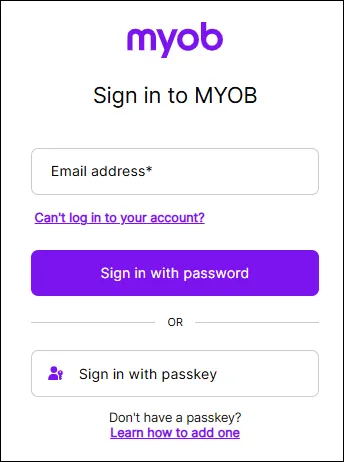
(If you've set up a passkey, you can sign in with that instead of your password)
When signing in to an offline company file, use your company file offline User ID and password. (The User ID is never an email address)
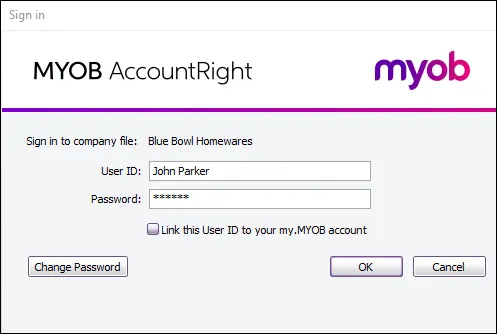


OK, here's how to reset or change these passwords.
Change or reset your MYOB account password
You'll use the same email address and password to sign into your online files or when signing into your file in a web browser. You'll also use them to sign in to the Community Forum or My Account.
If you forgot your password, or just want to update it, click Can't log in to your account? on the sign in page.

You'll then be asked for the email address used for the MYOB account.

An email will be sent to your inbox with a link to reset the password. Click it and enter your new password, then click Set password. You can now sign in using your new password.
If you just want to update your password, you can also change your password in My Account.
Changing your company file password (offline files only)
AccountRight Server Edition only
An offline password is used to access offline company files or when a company file is restored from an offline backup.
Forgotten your company file password?
You’ll need to get an administrator (that is, a user who's been assigned the administrator user role) to set a new password for you. This is done in the User Access window—the procedure below describes how to do this.
If you’re the only administrator and you’ve forgotten your password, you’ll need to contact MYOB to get the password reset. Contact us for help.
You can change your own user account's offline password from the Sign in window.
Open your offline company file.
In the Sign in window type your User ID.
Click Change Password.
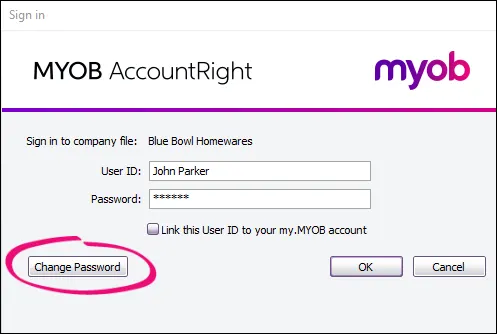
If no password has been set, leave the Existing Password field blank, otherwise enter the password you've previously signed on to the file with.
Can't enter the full password?
There's an issue preventing passwords longer than 11 characters to be entered. Until we fix it, an AccountRight administrator will need to change the password (see Changing the password of another user's account below).
Fill in the Password and Confirm Password fields.
Click Record and then sign on to the company file using the new details.

Changing the password of another user's account (offline files only)
AccountRight Server Edition only
If you’re an AccountRight administrator, and someone in your business has forgotten their password, here's what you can do:
Sign into your AccountRight offline file with your administrator account.
Go to the Setup menu and choose User Access.
Select the relevant account in the list of company file users.
Enter a temporary password in the Password and Confirm Password fields.
Click Save.
Let the user know what the temporary password is, and tell them to change it to a password of their choice the first time they access their company file by clicking the Change Password button in the Sign in window (see the previous procedure described above).
FAQs
Why can't I click User Access in the Setup menu?
You must be the company file administrator, or a user assigned the Administrator role, to use the User Access option in the Setup menu. If you still can't see the User Acess option, contact us and we'll help you out.
How do I reset the Administrator password?
Administrator passwords can’t be recovered. If you forget the password of your Administrator account, you’ll need to get another administrator to set a new password for you. This is done in the Setup > User Access window.
If your file only has one administrator account, and you’ve forgotten its password, we can reset the password for you.
I can't sign in - what can I do?
We've got you covered. See If you can’t sign in for all the details.