Use AI-driven automatching and suggestions to match your bank transactions with your MYOB records, so there’s less to sort through at reconciliation time. MYOB can automatically match transactions for you or suggest a possible match for you to review. To get started, switch on automatching in your bank rule settings.
We’re rolling out new AI-driven banking features. If your Bank transactions page doesn’t look like the example below, you don’t have these features yet, but they’re on the way.
For now, your bank transaction help is here.
MYOB matches transactions as they come in. It looks for an existing record first, learns from how you’ve matched similar transactions before and uses AI-based predictions when needed. When MYOB can’t match a transaction confidently, it suggests a match for you to review and confirm.
Keeping on top of your bank transactions in this way means that, when it’s time to reconcile, your books are already prepared.

Get to know the Bank transactions page
The Bank transactions page is your starting point. It's where you'll see your bank transactions, brought into MYOB Business via bank feeds or importing a bank statement. Choose the account you want to match from the drop-down list at the top of the page. See the actual transactions going into the account and where MYOB has organised them into Matched, Not Matched and ready to Reconcile:

All - View all transactions for the selected account in one place, across matched (ready-to-reconcile) and unmatched.
Not matched - Transactions that need attention. Review suggestions or manually match where required.
Matched - Transactions that have already been automatched or matched by you. Do a quick review and confirm everything looks right.
Reconcile - Bring it all together. Confirm balances and finalise reconciliation with matched transactions visible as you go.
Use the filters to narrow your search

Use the types and methods filters to declutter the Bank transactions page so you can focus on specific transaction types, suggestions, matching methods, or transactions that have been manually matched.
Matched transactions are shaded grey to distinguish them from white unmatched ones.
See how transactions have been matched

In the Method column, hover over a method for a description about how a transaction has been matched:
Logic. An automatch based on amount and date.
Rule. An automatch based on a set of instructions that tells MYOB how to handle certain transactions that regularly appear in the bank feed. More about rules
History. An automatch or suggested match to a category, using AI, based on how you previously matched a similar transaction.
Prediction. A suggested match to a category using AI, based on how other MYOB businesses have matched similar transactions.
Manual. Manually matched to a category (when there aren't any matches or suggestions, or if automatic matching is turned off).
If you don’t see the Method column, you’re still using an older version of the Bank transactions page. Your help is here.
Show separate withdrawal and deposit columns
To make it easier to see withdrawals and deposits, you can split the Amount column into separate Withdrawal and Deposit columns:

How automatching and suggestions work
MYOB applies a series of matching methods to help prepare your reconciliation faster. It first tries to match transactions to existing MYOB records, then applies your rules, and then uses previous matches in your file and AI-based predictions to suggest the most likely category.
In the background, a confidence score is assigned to determine whether to match a transaction or suggest a match. Transactions with high-confidence scores are automatically matched, medium-confidence scores are shown as suggested matches, and transactions with low-confidence scores must be matched manually.
You stay in control of the result. You can review, accept or reject any match or suggestion, and the Method column shows how MYOB arrived at it.

More about automatching and suggestions
Automatching and suggestions help, but you remain in control
You can choose to accept or reject any automatches or suggestions.
Working day-to-day with bank transactions
Whenever you sign in to MYOB Business, a new version of the Dashboard prompts you to match any unmatched bank transactions.

This version of the Dashboard is being gradually rolled out and currently only available to those using AI BAS.
Check in regularly with your bank transaction matching when you sign in to MYOB. If you see something in the Dashboard that needs your attention, click View transactions from a Banking card (you can also go via the Banking menu > Bank transactions). Work through any automatches and suggestions, then tackle any unmatched transactions.
A transaction is matched when the Out of balance amount is $0.00:

Review what’s already matched
Start by reviewing automatches to existing records, then check any rule-based matches. Next, review category suggestions based on your previous matching history, record suggestions where there are similar possible matches, and AI predictions.
In the Matched view, you can see all of your matches. Use the Method column to see how a transaction was matched, whether used Logic, Rule, History, Prediction or Manual, then accept, change or reject the result.
If any automatch doesn’t look right, you can unmatch it and find a match the transaction yourself.

Consider suggestions
In the All or Not Matched views, see what MYOB suggests for matches. Review each suggestion to see what MYOB is recommending, then decide whether to accept it or choose something else. Expand the transaction to see more details. If you're OK with the suggestion, click Accept, or manually match the transaction to another category or record.

You can accept multiple suggestions at once. Ideal for when you have lots of similar transactions you want to match the same way. Select the transactions and hit Accept suggestions:

Deal with unmatched transactions
See unmatched transactions in the Not Matched view. A transaction won't be matched if MYOB can't confidently automatically match it to a record or offer a suggestion.
Check whether there’s an existing MYOB record you can find by searching or adjusting the filters. If there isn’t a suitable match, manually match the transaction to the right category.

Expand the transaction if you need to see more detail, want to double-check if there may be matching records, or you want to match the transaction to multiple categories. It will open Match to existing record if a matching record is available. If there isn’t one, it will open in Select categories. You can choose a different option if needed.

If there is a slight difference between the bank transaction amount and the record amount (which can be caused by rounding differences), select the transaction and click Add adjustment. Enter an adjustment that brings the Out of balance amount to $0.00.

If you've got several transactions you want to treat the same way, select them and click Select category. You can then match them all to a selected category at once.

Once you’ve matched a transaction to a category, MYOB automatically creates a matching record. MYOB also learns from how you matched it – you may see suggested matches for similar transactions in the future.
Reconcile your accounts
Reconciling your bank accounts ensures that the bank account balances in MYOB match those in your bank’s records. In this step, you need to confirm that your bank and MYOB balances match for the reconciliation period.
If you’ve been reviewing smart rec automatches and suggestions regularly, there should only be a small amount left to check in the Reconcile view. You’ll see what’s already matched, what still needs attention, and recommendations to fix anything that could stop you finalising.
Refer to your bank statement and follow these steps to reconcile an account:
Reconcile an account
On the Bank transactions page > Reconcile view, choose the bank account you want to reconcile.
Confirm you've correctly entered the Statement end date and Bank balance from your bank statement.
If there is a Difference amount, review the reconciliation summary to see what’s already confirmed for reconciliation and what still needs review.

Use the Matched status and Action columns to find the records causing the difference. In the Action column, click an action to go to what needs to be fixed:
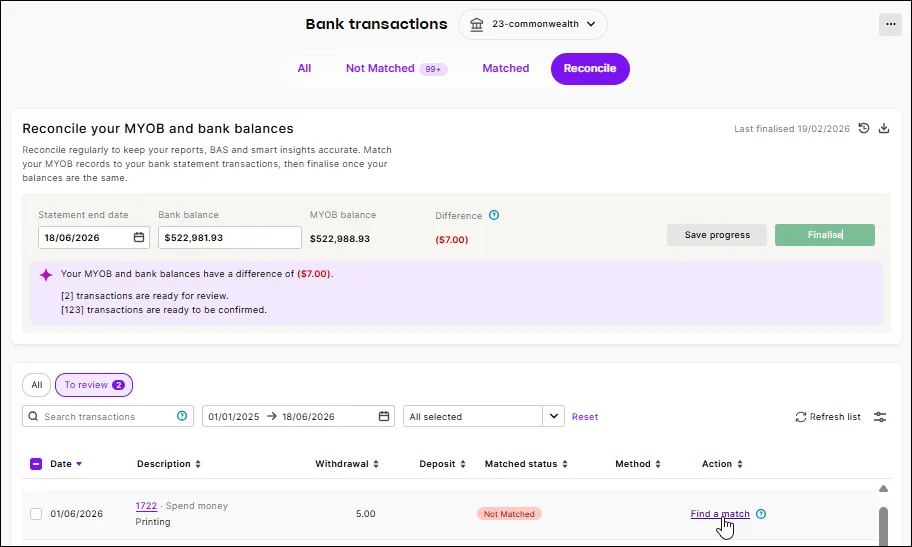
Match an unmatched transaction. Click Find a match to open an unmatched bank transaction in the Not Matched view. Choose from suggested matches, if there are any, or manually match the bank transaction (need a refresher on matching bank transactions?)
Check the record date in a transaction record. This recommendation appears when either the MYOB record date or the bank transaction date is outside the statement date range. Click the reference number to open the transaction record and review the date. If needed, update the record so it reflects the correct transaction date for reconciliation.
A matched transaction can appear in the Reconcile view if either the bank transaction date or a matched MYOB record date is within the statement date range. If you don't want to include the transaction in this reconciliation, leave it unticked.
Use filters or sorting if you need to narrow the list to records that still need review.
If there are uncleared transactions, mark them as cleared (select them) if they appear on your bank statement. You might have uncleared transactions if, for example, you're performing a monthly reconciliation but you applied for bank feeds part way through the month.
Click Refresh list to reload the Reconcile view with the latest changes.
Click Save progress to save your work. The reconciliation summary updates after your changes are saved, so you can come back later to continue.
Keep reviewing until you've addressed any recommended actions, there are no uncleared transactions and the Difference is $0.00.
Click Finalise to complete the reconciliation.
You can only do this step if the Difference is $0.00.
Click the confirmation message if you want to download the reconciliation report. This provides a summary or detailed report for each bank reconciliation you've completed on each of your categories.


Still getting a difference?
Here are some other things to look out for:
if this is your first reconciliation, check that your category opening balance doesn't include any uncleared transactions. If it does include uncleared transactions, change the opening balance.
did you select all the transactions that appear on the bank statement? If not, some transactions might not have been accounted for in the reconciled balance.
did you select, by mistake, a transaction that didn’t appear on your bank statement? If yes, you need to deselect this transaction.
FAQs
What gets matched automatically?
There are a range of automatch settings in MYOB, all can be turned on – and off – by you. What’s new is automatching to categories. Transactions are only automatched when there’s a high confidence score of 90% or more.
Matches are based on your past behaviour and a new prediction method, which uses AI, to learn from common patterns across similar customer files. A match will be made where the system has high confidence it's correct (greater than 90%). If the system has a confidence rating of between 70 and 90% it will provide a category suggestion instead of a match. If the system has a confidence rating of below 70%, you'll need to manually match the transaction to the appropriate category.
How do I know how something was matched?
Every match or suggestion includes a label that shows how MYOB arrived at it. There are four methods that MYOB uses for matching: rule-based, historical behaviour, logic or manual. This gives you useful context as you review transactions.
Can I still review and change automatches?
Yes. You’re always able to review automatches, and change them if you want, in the Matched view or before finalising reconciliation.
How does MYOB align with responsible AI principles?
MYOB's bank transaction matching is aligned to the principals in the Australian Government’s Guidance for AI Adoption, with a focus on transparency, human oversight and accountability.
MYOB uses AI to assist with matching and suggestions – not to make unchecked decisions on your behalf.
Does AI make final decisions in my file?
No. When there are no applicable rules, logic or history to help categorise the transaction, MYOB uses AI to to help identify and suggest likely matches. You remain in control. You are still required to review transactions in the Reconcile view of the Bank transactions page. Here you can edit matches before finalising the reconciliation.
How is transparency provided?
Each automatch or suggestion clearly shows why it was made. You’ll see labels in the Method column that explain the logic behind the match, so you can understand and trust what’s happening in your books.
Is my data used to train AI models outside my business?
MYOB uses data responsibly and securely. It learns from patterns within your file and similar behaviour to improve accuracy, without exposing your business data to other customers.