If you pay your suppliers or employees electronically, you might need to change or fix an electronic payment. For example, maybe you've recorded a payment with the wrong amount or incorrect banking details.
What needs changing or fixing?
An electronic payment is typically a single batch of payments, sometimes called a "grouped electronic payment". It contains the supplier and employee payments in MYOB that you've grouped together to be paid electronically.
So, depending on what needs changing or fixing, you might need to consider both the grouped electronic payment and the individual payments it contains.
Deleting a grouped electronic payment
If an electronic payment was recorded incorrectly via the Prepare electronic payments page in MYOB, you can delete it if:
the associated direct payment has not been authorised, or
the associated bank file has not been uploaded to your bank for processing.
What happens when I delete a grouped electronic payment?
-
Only the grouped electronic payment will be deleted.
-
The individual supplier or employee payment transactions (contained in the grouped electronic payment) will not be deleted. Instead, they'll be listed again on the Prepare electronic payments page, ready to be processed again.
-
If it was a direct payment, the batch payment will remain in the payments portal.
-
If a bank file was created, the bank file will not be affected.
To delete a grouped electronic payment:
Go to the Banking menu and click Find transactions.
On the Debits and credits tab:
Enter a date range that includes the date you processed the electronic payment.
In the Account field, choose your Electronic Clearing Account.
Using MYOB Business - Payroll only?
To find the electronic payment, go to the Payroll menu > Pay runs and click the date of payment for the pay run that the electronic payment was made for. Now click an employee that was included in the electronic payment - you'll see the electronic payment Reference no near the bottom.
Click the Reference no to open the electronic payment transaction.
Click Delete.
At the confirmation message, click Delete. The grouped electronic payment transaction is deleted, and all the payments within in will be listed on the Prepare electronic payments page.
Changing a transaction within a grouped electronic payment
If you've prepared an electronic payment, you'll be able to change a transaction within that electronic payment only if:
the associated direct payment has not been authorised, or
the associated bank file has not been uploaded to your bank for processing.
To change a transaction in a grouped electronic payment
Delete the electronic payment (see above for details).
Change the transaction which needs fixing. For help see Entering payments made to suppliers or Changing or deleting a pay.
If you've changed the supplier or employee payment, you can then process the electronic payment again.
Recreating a bank file
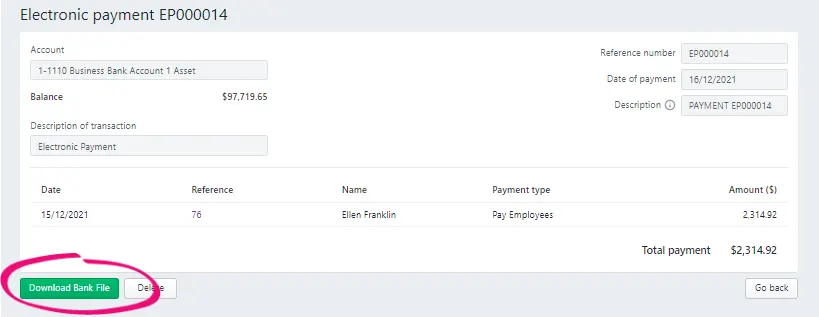
To recreate a bank file you'll need to find and open the relevant electronic transaction, then download the bank file again.
Go to the Banking menu > Find transactions > Transactions tab.
Use the filters across the top to narrow your search. For example, if you're looking for employee payments, choose Pay runs as the Transaction type.
Using MYOB Business - Payroll only?
To find the electronic payment, go to the Payroll menu > Pay runs and click the date of payment for the pay run that the electronic payment was made for. Now click an employee that was included in the electronic payment - you'll see the electronic payment Reference no near the bottom.
Click the Reference no. to open the transaction.
Click Download Bank File to download the bank file:

If you need to do something that isn't covered above, or you just need a hand, we're here to help.
If you make electronic payments using bank files and you need to make changes, see Making electronic payments with a bank file.
You can only change electronic payments that have not been sent to your bank for processing, or have failed to meet your bank’s processing criteria. If a payment has been rejected by the bank, see Rejected electronic payments.
To delete a grouped electronic payment
If an electronic payment was recorded incorrectly via the Prepare Electronic Payments window, it can be deleted.
Deleting a grouped electronic payment transaction only removes this transaction from AccountRight and has no effect on the individual payment transactions. It also won't remove the batch payment from the payments portal.
Once it's deleted, the individual transactions that were within the grouped electronic payment will be listed again on the Prepare Electronic Payments window. If needed, you can delete or reverse an individual payment transaction.
To delete a grouped electronic payment:
Go to Banking > Transaction Journal > Disbursements tab.
Specify the date range to display the electronic payment (these have 'EP' in the transaction ID).
Open the electronic payment to be deleted.
Go to the Edit menu and choose Delete Electronic Payment Transaction.
-
Can't see the delete option? Open the preferences (Setup > Preferences > Security tab) and deselect the preference Transactions CAN'T be Changed; They Must be Reversed.
-
To change a transaction within a grouped electronic payment
If you've prepared an electronic payment but it hasn't been processed (it hasn't got a status of Processing or Processed in the payments portal), you can change one of the payment transactions as follows:
Delete the electronic payment.
Go to Banking > Transaction Journal > Disbursements tab.
Specify the date range to display the electronic payment (these have 'EP' in the transaction ID).
Open the electronic payment to be deleted.
Go to the Edit menu and choose Delete Electronic Payment Transaction.
Can't see the delete option?
Open the preferences (Setup > Preferences > Security tab) and deselect the preference Transactions CAN'T be Changed; They Must be Reversed.
Change the transaction which needs fixing.
Prepare the electronic payment again. See Making electronic payments directly.
To remove transactions from the Prepare Electronic Payments window without recording them
A transaction will be listed in the Prepare Electronic Payments window when it's recorded as an electronic payment, like this Spend Money example:

To remove a transaction from the Prepare Electronic Payments window without processing it, you'll need to:
Reverse or delete the transaction which you originally recorded with the Electronic Payments option selected.
Record it again but don't select the Electronic Payment option. If it's a payroll transaction, you'll need to change the employee's payment details if they're no longer being paid electronically.