If you've received a message that MYOB will soon require you to add SMS as one of your two-factor authentication (2FA) methods, this help topic explains how to set it up.
Still getting an SMS setup message after turning on SMS 2FA?
Close it by hitting the cross at the top right of the message or refresh the MYOB Business page.
SMS 2FA lets you confirm your identity with security codes sent by text to your phone. You can use SMS as the primary method to access your MYOB software, or keep it as a backup for when your other 2FA method is unavailable or you've been locked out.
Benefits of SMS 2FA
Ease of use – it's quick and easy to set up and sign in
Convenience – you're always likely to have your phone handy
Security – it's more secure than email 2FA (compare 2FA methods)
It's a handy backup – set up SMS as an additional 2FA method in case you don't have access to your other method
Transfers smoothly to a new phone – if you keep your old phone number, you'll be able to receive 2FA codes on your new phone without needing to set up 2FA again
Fewer codes required – SMS 2FA has a built-in “Smart Remember Me” feature, which means you won't be prompted to provide a code every time you sign in to MYOB
Getting set up
Log into My Account (myaccount.myob.com).
If prompted, enter a 2FA code using your existing 2FA method or a recovery code.
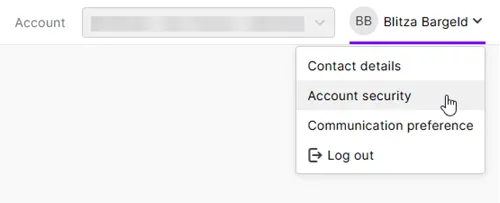
Click your user name in the top-right corner and choose Account security.
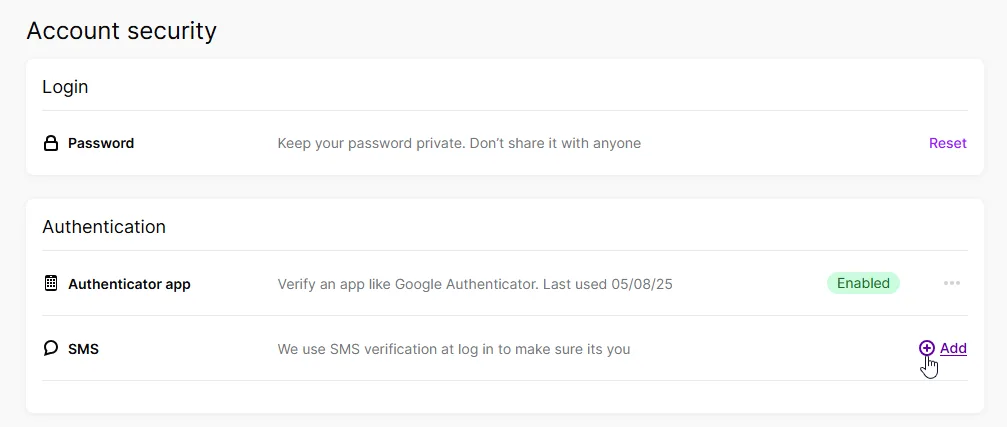
Click Add for the SMS 2FA method.
Verify your identity with a 2FA code. You'll receive this via the same 2FA method you normally use.
Enter your phone number without the country code. You can also omit the leading zero if you want.
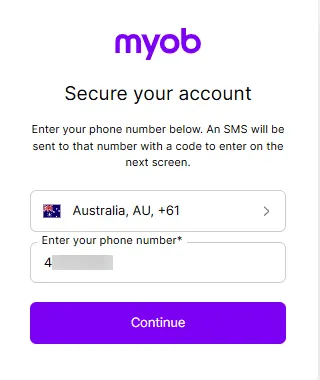
Click Continue. MYOB sends a 6-digit code to your phone. If you didn't receive a code, click Resend to receive another code.
Enter the code on the Verify your identity page and click Verify code. If the code is invalid, check that you've entered the code correctly.
If prompted to save a recovery code, click Copy code and save your recovery code somewhere other than your phone. You can use this code to log in when you don't have your phone. Acknowledge that you've saved the code.
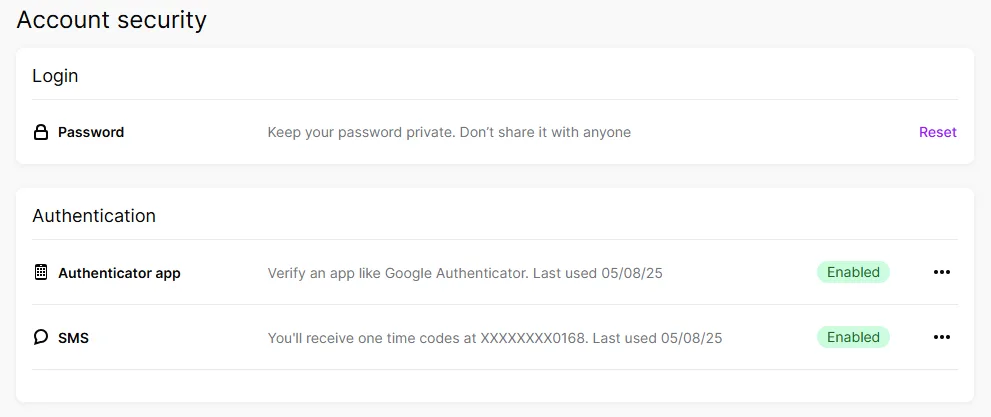
Click Continue. SMS is listed as an enabled authentication option in Account security.


Signing in with SMS 2FA
Sign in to your MYOB account as normal, using your email address and password.
A 6-digit code is sent to your mobile phone via SMS.
If you're prompted to verify your identity with another 2FA method, click Try another method. Choose SMS as the authentication method.
Enter the 6 digit code and click Verify code. Your MYOB software will open.